

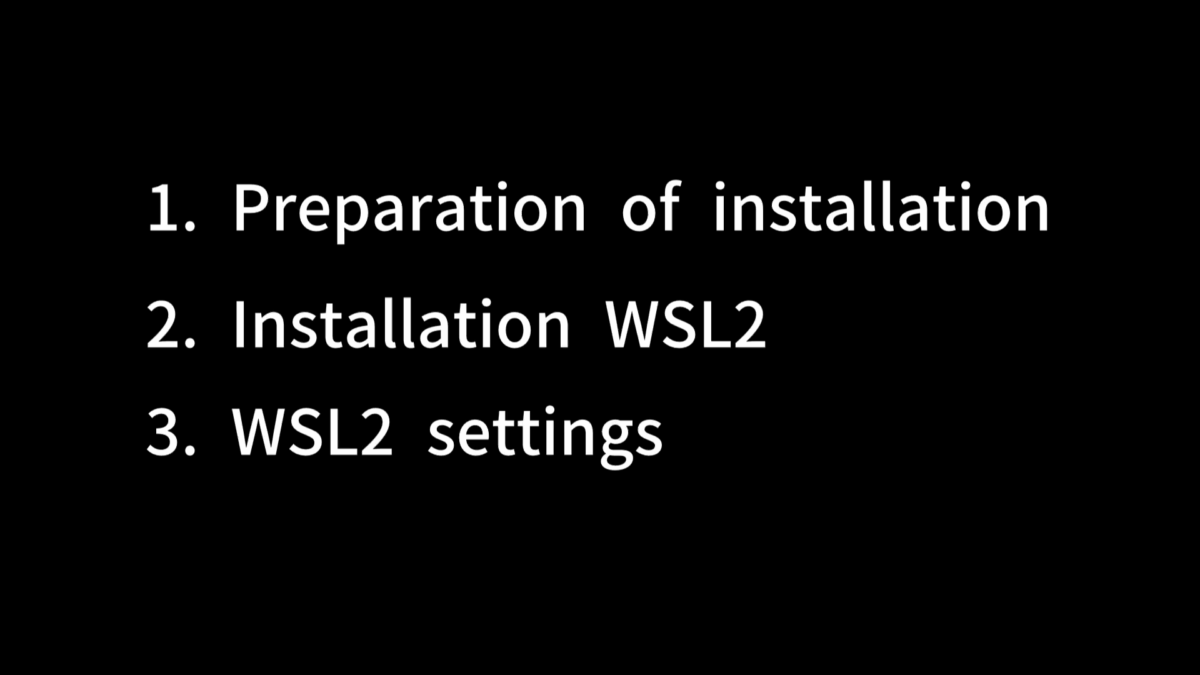
overview
Please follow the video below to set it up. The video is divided into three parts.
- preparation of installation *1
- Installing WSL2 *2
- WSL2 settings *3
*1 As part of the pre-installation preparation, you can launch Task Manager by right-clicking the taskbar.
If the “Virtualization” option is disabled, you need to enable virtualization in the firmware’s BIOS/UEFI.
Click and copy the following command.
Refer to “2. Installing WSL2” in the video above to open PowerShell, then press Ctrl+V or right-click, paste the command, and press Enter.
You will then obtain your computer name. Search for “[computer name] virtualization” in a web browser such as Chrome to find the virtualization setup method that is appropriate for your computer.
*2 The following is a list of the command strings used in the WSL2 installation video.
Click on the command to copy it.
Refer to “2. Installing WSL2” in the video above to open PowerShell, and then press Ctrl+V or right-click and press Enter in PowerShell.
※3 The following is a list of the commands used in the WSL2 setup video.
Click on the command to copy it, then paste it line by line using Ctrl+V or right-click and press Enter.